Modern management meets old School printing
Everyone hates printers. At least every IT professional does, and if anyone tells you otherwise, they are lying.
The idea for this post came from one of those rare days when several colleagues and I were all working from the same office. Somewhere between actual work and the usual technical rabbit holes, a surprisingly large part of the conversation ended up being about 3D printers.
That made me think it was probably time to write about a slightly less exciting kind of printer: the one that insists it is offline while sitting three metres away from you with a perfectly healthy network connection.
So, naturally, I went out and bought a Xerox C255a Color MFP.
To my amazement, it has Universal Print built in. No dedicated print server, no extra connector and no hunting for drivers on every client. I registered the printer directly with my Microsoft 365 tenant and had it available to users shortly afterwards.
The printer was not sponsored by Xerox, but Xerox, if you happen to read this, feel free to reach out. Also, please ignore the first sentence about everyone hating printers.
Table of contents
- What is Universal Print?
- Universal Print-ready printer or connector?
- Registering the Xerox printer
- Sharing the printer
- Secure release
- Using Universal Print on Windows
- Using Universal Print on macOS
- How the print-job allowance works
- The verdict
What is Universal Print?
Universal Print is Microsoft’s cloud-based print service.
Instead of users connecting to a traditional on-premises print server, printers are registered in Universal Print, shared with users or groups, and discovered through the operating system. Print jobs are sent through Microsoft’s cloud service and delivered to the printer.
For Windows users, support is built into the operating system. There is no traditional printer driver package that must be installed on every endpoint just to get started.
Universal Print does not make the physical printer disappear. It might, however, reduce the urge to take it into a field with two colleagues and a baseball bat, which is probably as close to a measurable IT benefit as any printer platform can offer.

Office Space, demonstrating the traditional printer-remediation process.
More practically, it removes quite a bit of the infrastructure normally surrounding it.
Universal Print-ready printer or connector?
There are two ways to connect a printer to Universal Print.
The easiest option is a Universal Print-ready printer. These printers can register directly with Microsoft 365 and communicate with the service without an intermediary. That is the setup I am using with the Xerox C255a.
If your printer does not have native Universal Print support, you can use the Universal Print connector.
The connector runs on a supported Windows client or Windows Server with the printers installed locally. The machine must run continuously, remain connected to the internet and have network access to the printers it serves. In other words, it replaces some of the traditional print-server functionality, but you still need a Windows device running inside the environment.
If you are buying new printers, checking Microsoft’s list of Universal Print-ready printers first may save you some work.
Registering the Xerox printer
Xerox has a convenient three-step guide for registering the printer with Universal Print.
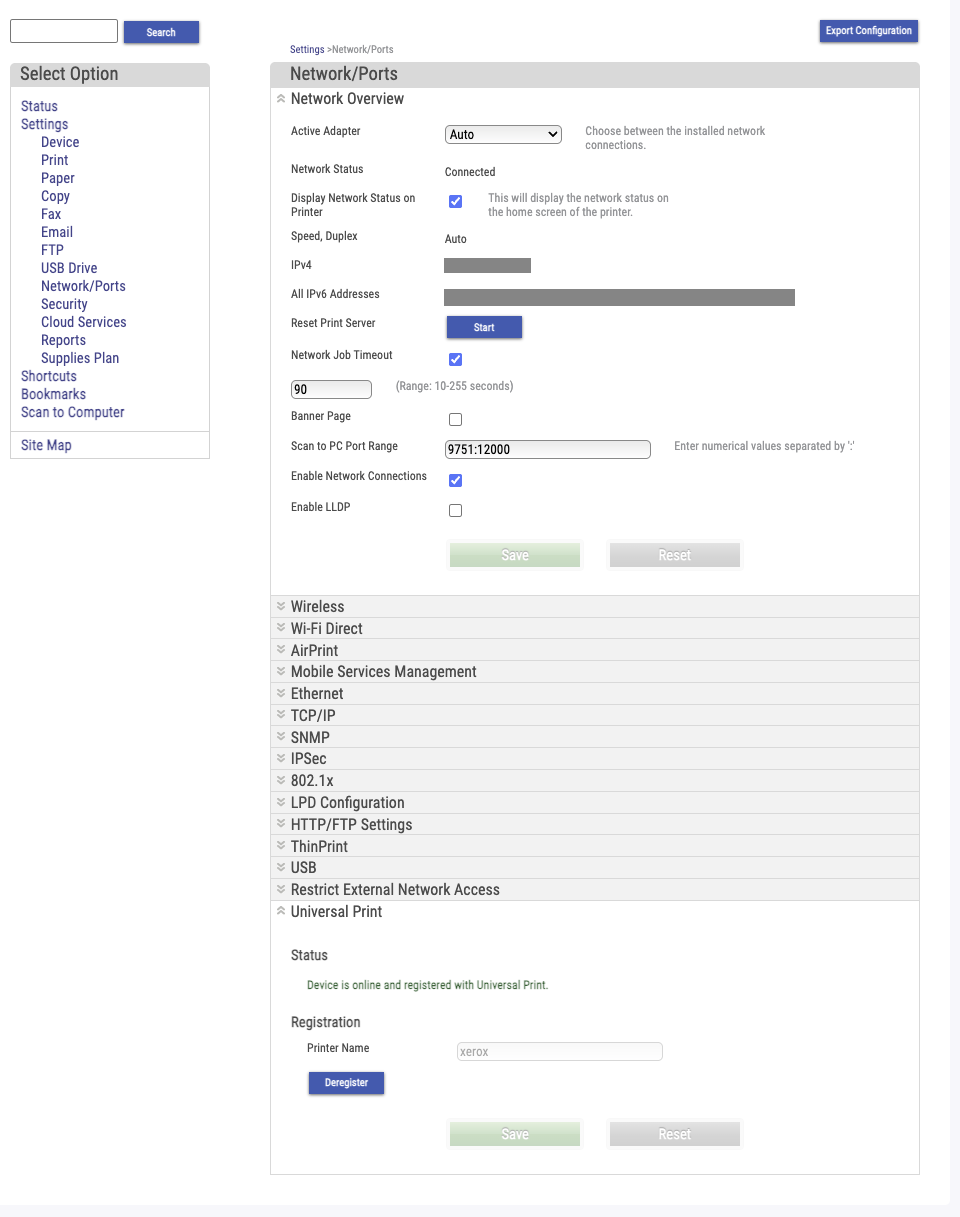
From the printer’s web interface, I opened Settings > Network/Ports, expanded Universal Print, entered a printer name and started the registration. The remaining authentication and approval flow linked the printer to my tenant.
Once registration was complete, the printer appeared in the Universal Print portal with a status of Ready.
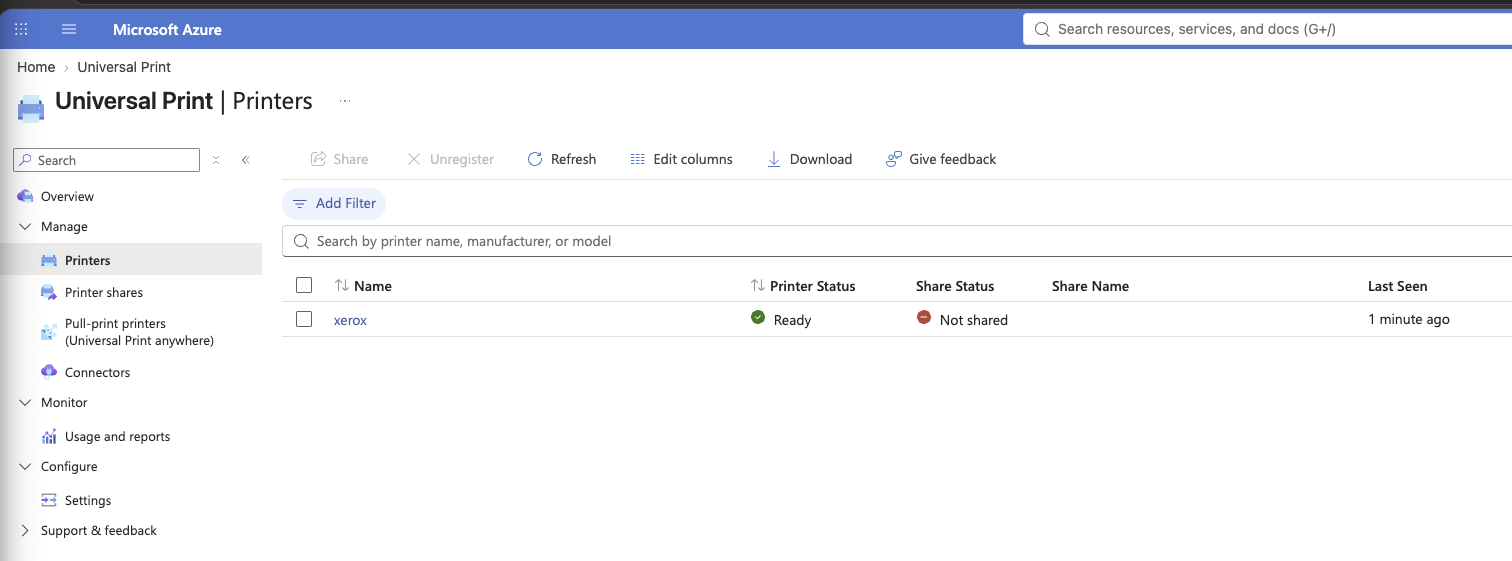
That completes the registration, but registration and sharing are two separate things. At this stage, Universal Print knows about the printer, but users cannot use it yet.
Sharing the printer
The next step is to create a printer share.
I shared mine with everyone in the tenant, but Universal Print can also grant access to selected users or Microsoft Entra ID groups. You could, for example, create groups such as Everyone at Office X or Finance, and only expose the relevant printers to those users.
Open the registered printer and select Share.
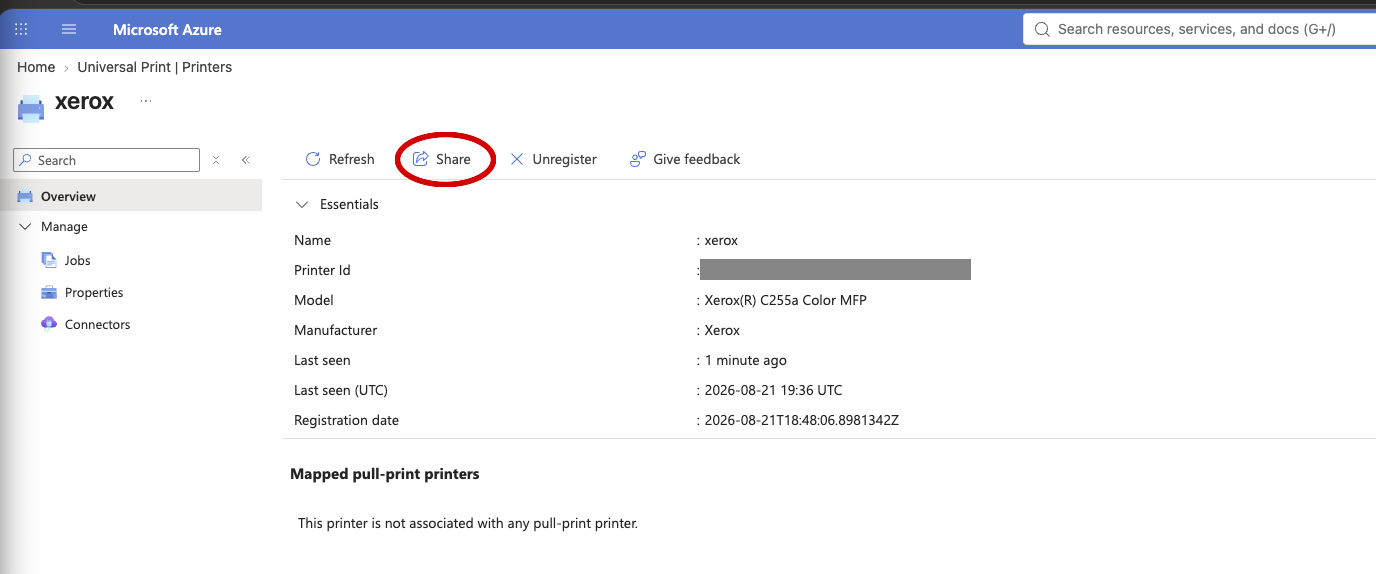
Enter the share name users should see and decide who should have access. Enabling Allow access to everyone in my organization does exactly what it says. Otherwise, add the users or groups that need the printer.
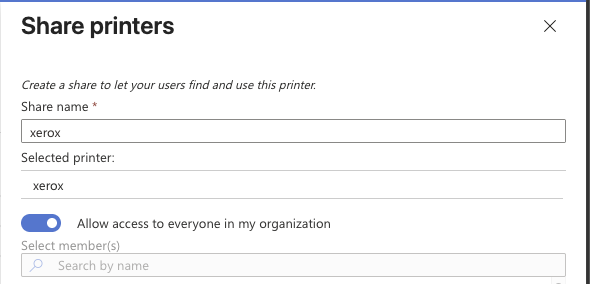
Select Share printer, and that is it: the registered printer now has a share that permitted users can discover and install.
Microsoft explains the distinction between registered printers, shares and permissions in its Universal Print sharing documentation.
Secure release
Universal Print also supports secure release. Instead of printing a document immediately, the service holds the job until the user is physically at the printer and releases it.
This is useful for confidential documents and for the slightly less impressive situation where someone prints something sensitive, gets distracted and leaves it sitting in the output tray for half the day.
Secure release is configured on the printer share, not merely on the registered printer. Open the share properties and enable Enable holding jobs until secure release.
The QR-code release method works with printers registered directly and printers connected through the Universal Print connector. Print the QR code generated by Universal Print and attach it to the physical printer.
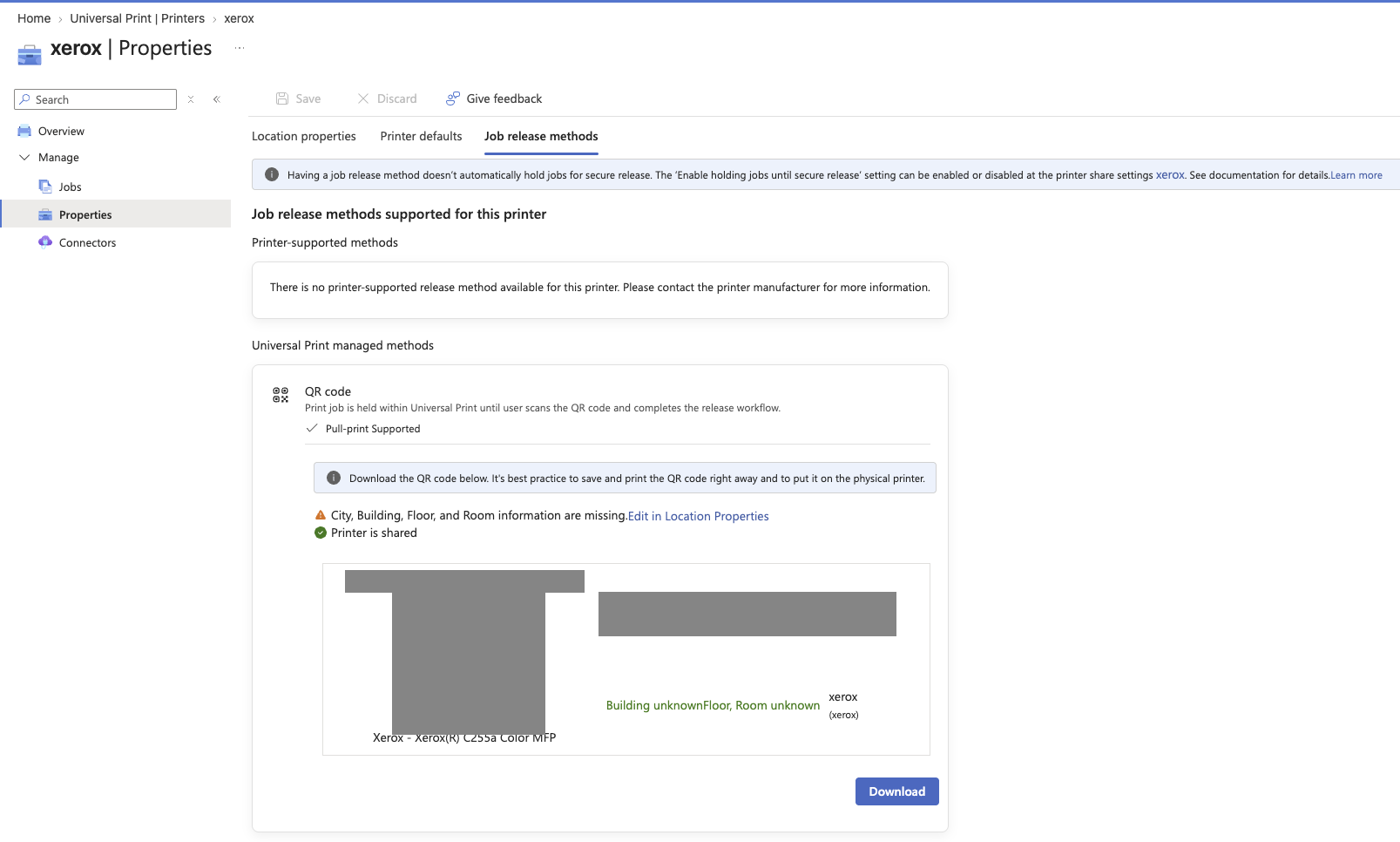
The user prints normally, walks to the printer and scans the QR code with their phone’s camera. The link opens the Universal Print portal, where the user signs in if necessary, confirms the printer, selects the pending job and sends it to print.
If you do not want users to scan a QR code for every print job, I recommend creating two clearly named shares:
- Office Printer for jobs that should print immediately.
- Office Printer – Secure for jobs that must be released at the device.
Because the hold setting belongs to the share, users can deliberately choose the workflow that matches the document. Microsoft documents this split between immediate printing and held jobs in its job-release settings guide.
Using Universal Print on Windows
Universal Print support is built into modern Windows versions. If a user has access to a shared printer, they can discover it from Settings > Bluetooth & devices > Printers & scanners by selecting Add device and then Search for printers in my organization.
That works well for optional printers, but asking every user to install the obvious office printer themselves is not particularly modern management.
For managed Windows devices, you can deploy Universal Print printers automatically with an Intune Settings Catalog policy. Microsoft has documented the configuration in Configure Universal Print policy using the Settings Catalog. Assign the policy to the relevant users so their printers are installed without requiring manual discovery.
Using Universal Print on macOS
Universal Print also works on macOS, but it is not built into the operating system in quite the same way.
First, install the Universal Print app from the Mac App Store. Microsoft currently lists macOS Sonoma 14.6.1 or later as the minimum supported version. The app can be deployed through MDM, or installed manually from the App Store. Manual installation of the app requires administrator privileges, which is another good reason to deploy it through MDM.
After installation, the user opens System Settings > Universal Print, allows the initial consent prompt and signs in with their Microsoft Entra ID account. The printers shared with that user can then be found and added from the app.
Once added, they appear in the standard macOS print dialog and work like other installed printers. The user’s day-to-day workflow remains File > Print, which is exactly how it should be.
There is one important management detail: by default, macOS requires administrator privileges to install or modify printers. If your users are standard users - and they probably should be - you can change this centrally. Microsoft provides an example for allowing non-administrators to install printers by modifying the CUPS authorization policy. Because that change affects who may add or modify printers locally, test and deploy it deliberately through your MDM solution.
Universal Print also has a tenant-wide macOS compatibility setting:
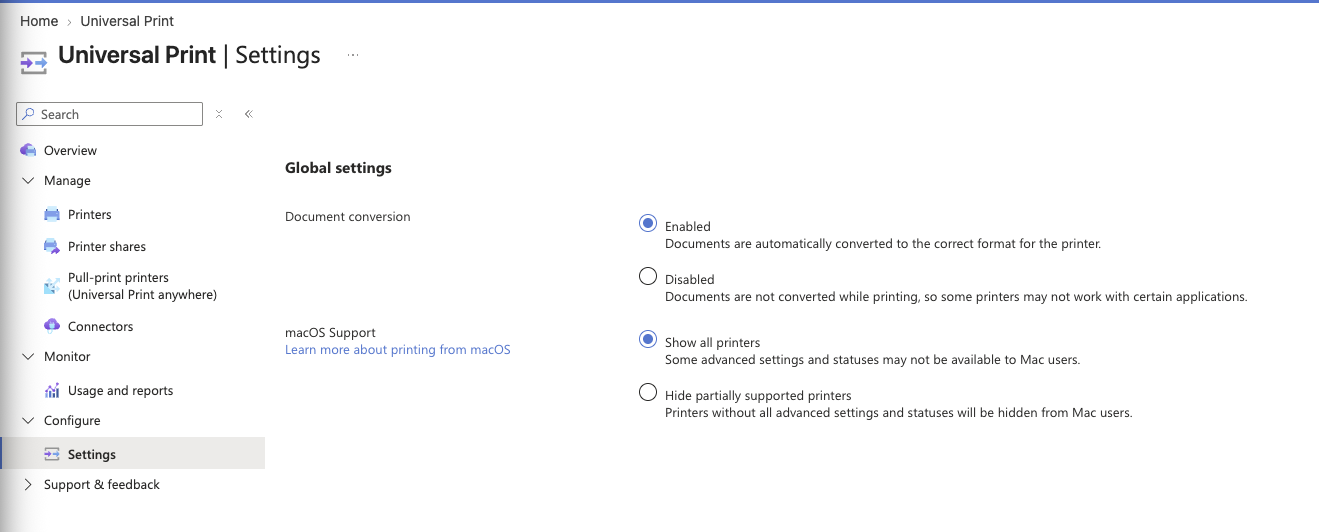
The Show all printers option exposes partially supported printers to Mac users, although some advanced settings or statuses may be unavailable. Microsoft lists the Xerox C255a as fully supported from firmware version 251.019, so check both the supported printer list and the printer firmware when troubleshooting macOS discovery or features.
The complete user flow is covered in Microsoft’s Universal Print setup guide for macOS.
How the print-job allowance works
Now for the part everyone gets nervous about: billing.
Universal Print measures usage in print jobs, not pages, sheets, copies or printers. One document sent to a printer counts as one job regardless of whether the document contains one page or 100 pages. Even multiple copies sent as part of that same job still count as a single print job.
Eligible licences contribute jobs to a shared tenant pool. Microsoft 365 E3, E5 and Business Premium currently contribute 100 print jobs per licensed user per month.
That means a small company with 20 Microsoft 365 Business Premium users receives:
20 users × 100 print jobs = 2,000 print jobs per month
Those jobs are pooled across the tenant. An individual user is not restricted to exactly 100 jobs, and the available volume refreshes at the beginning of each month.
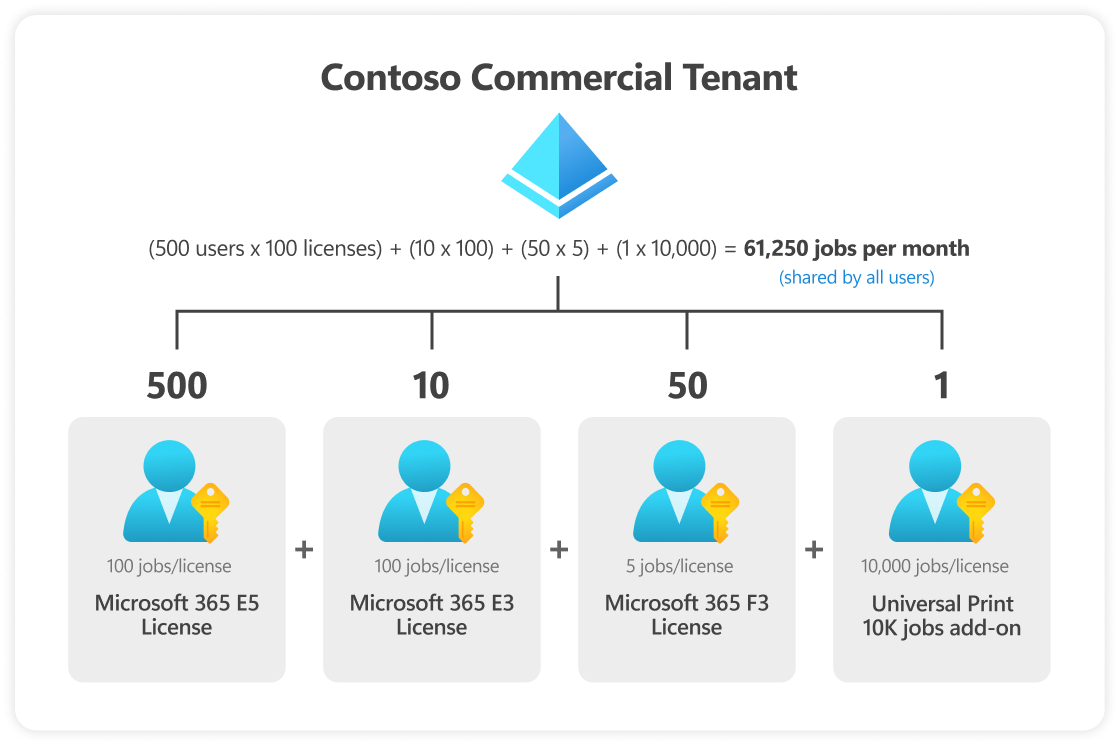
Image source: Microsoft – Get access to Universal Print.
Microsoft states that printing can continue if the organization exceeds its included volume, but the administrator receives an alert and the organization must purchase sufficient additional capacity for its ongoing usage. Usage can be monitored under Universal Print > Usage and reports.
For many smaller organizations, 2,000 documents per month is quite a lot, particularly because a 40-page report is still one print job. As always, check Microsoft’s current licensing and print-volume documentation before designing around a specific allowance.
The verdict
Universal Print was much easier to set up than I expected, which is not something I say about printers very often.
With a Universal Print-ready printer, the process was essentially:
- Register the printer with the tenant.
- Create a share and assign access.
- Let users discover the printer or deploy it automatically with Intune.
There are still things to consider. Printing depends on internet access, print jobs pass through Microsoft’s cloud service, macOS requires an additional app, and older printers need a continuously available connector. Secure release also introduces an extra user step by design.
Even with those caveats, Universal Print removes the traditional print server from many environments, integrates with Microsoft Entra ID groups and Intune, works across Windows and macOS, and includes a secure-release option without requiring a separate print-management platform.
So, the short version is this: Universal Print is straightforward to configure, straightforward to manage and straightforward for users. That does not make printers lovable, but it makes them slightly harder to hate.